Briefcast · Free for Windows

Stop juggling five apps
to explain one idea.

Record your screen, cut the video by deleting words from its transcript, add captions, then write the paper or notes that go with it. Briefcast replaces your screen recorder, video editor, captioning service and word processor with one free app that runs entirely on your computer. No account. No uploads. No watermark.

34 downloads

Version 0.1.2 · 105 MB · Windows 10 & 11, 64-bit · Free · Released 13 Oct 2026

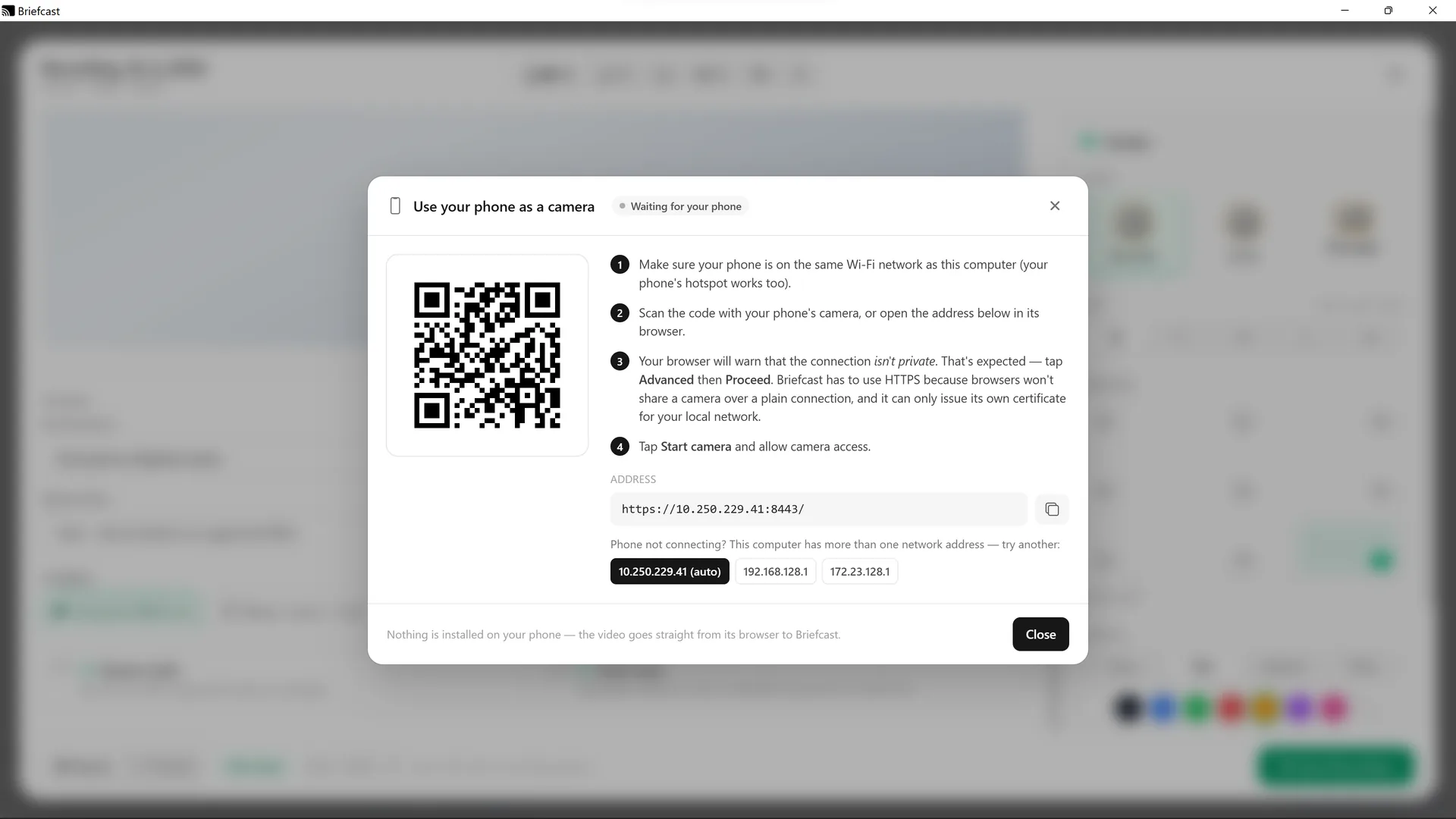
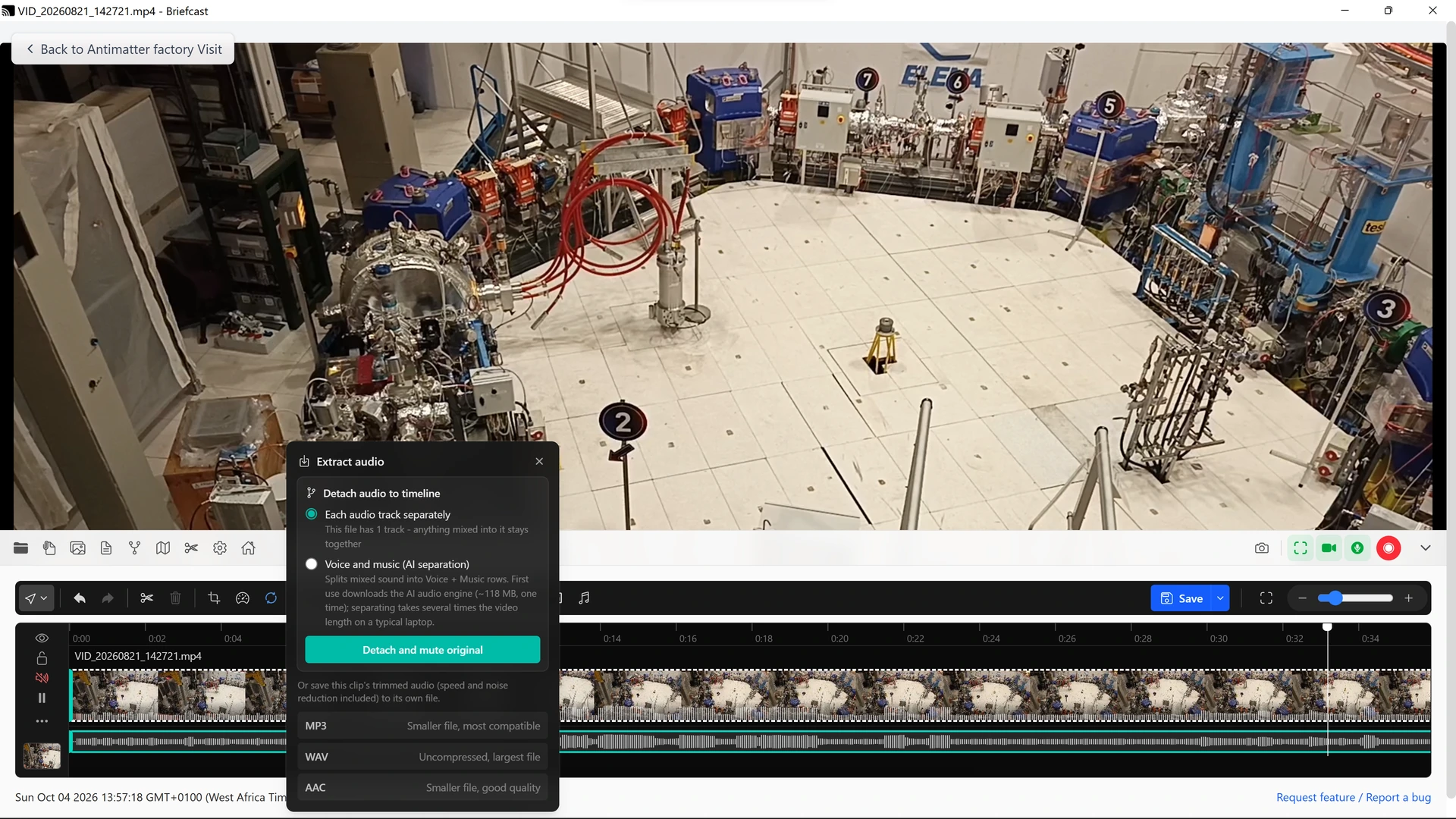
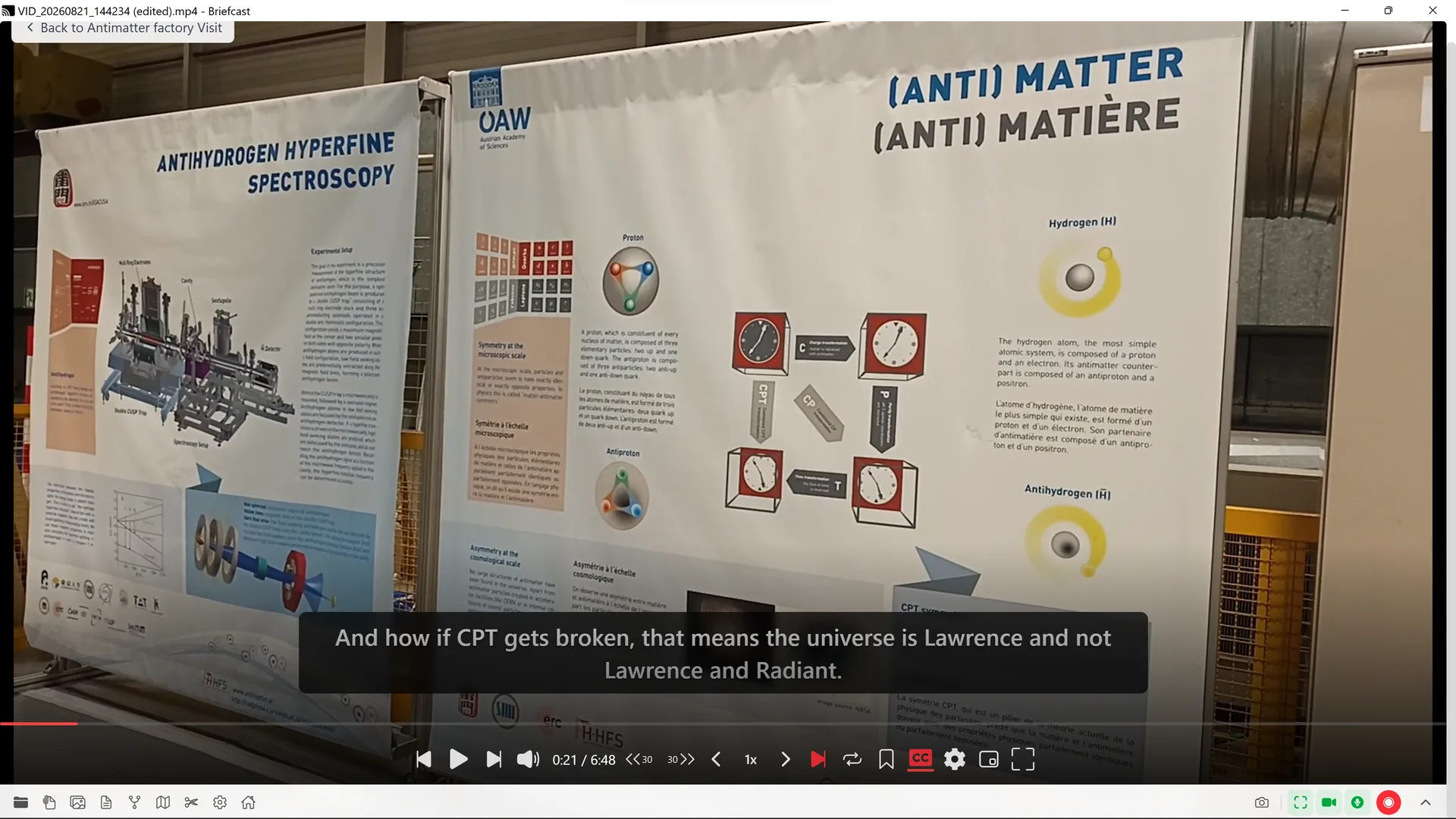
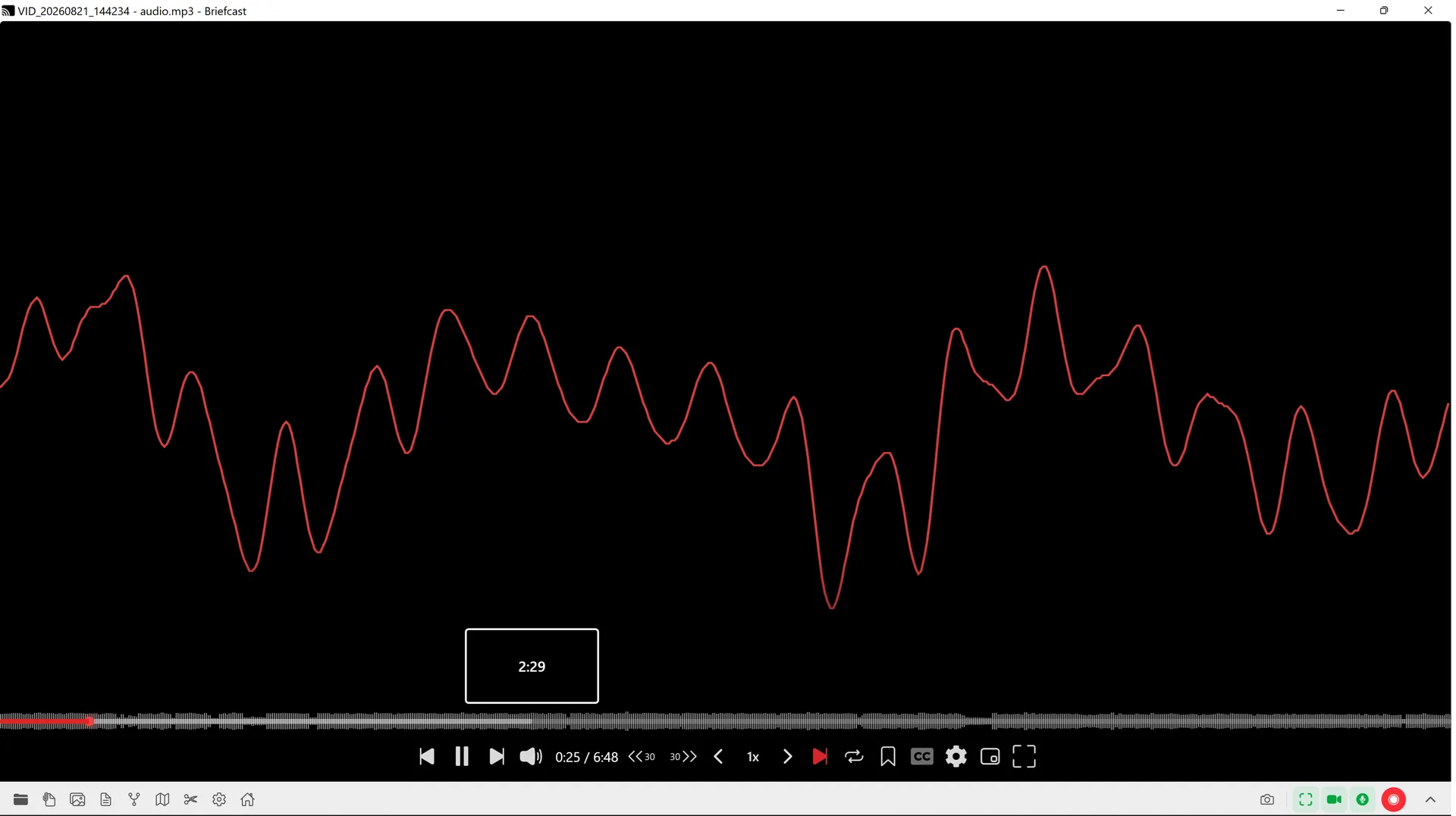
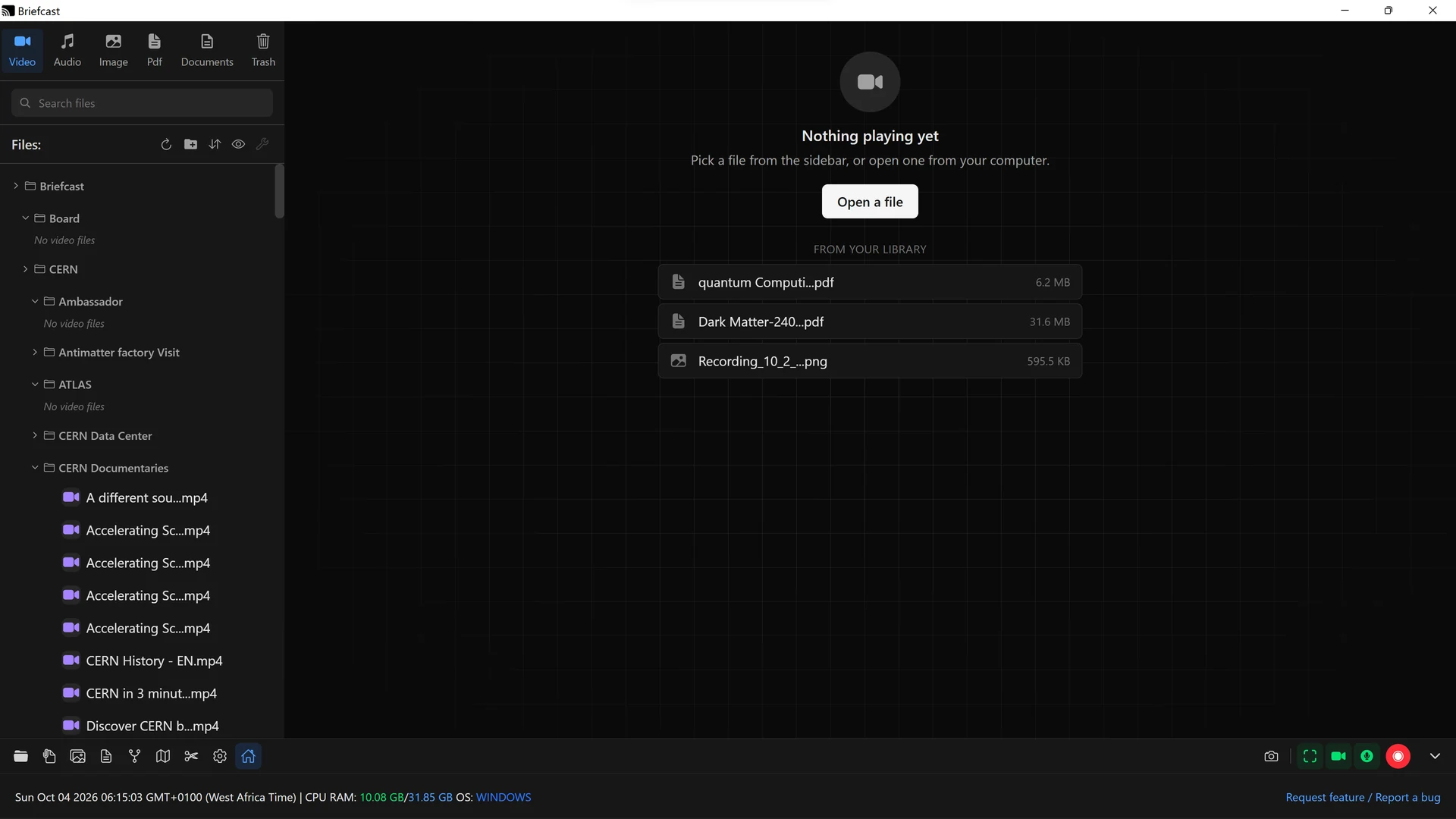
The Briefcast app window, with the file library on the left and recording controls along the bottom Briefcast: Screen recording Briefcast: Phone as a camera Briefcast: Video editor Briefcast: Offline captions Briefcast: Audio cleanup Briefcast: Docs Briefcast: Whiteboards and mind maps Briefcast: PDFs and images Briefcast: Drawing on the screen
What it does

Five apps’ worth of work. One free download.

01

Record your screen, camera and phone

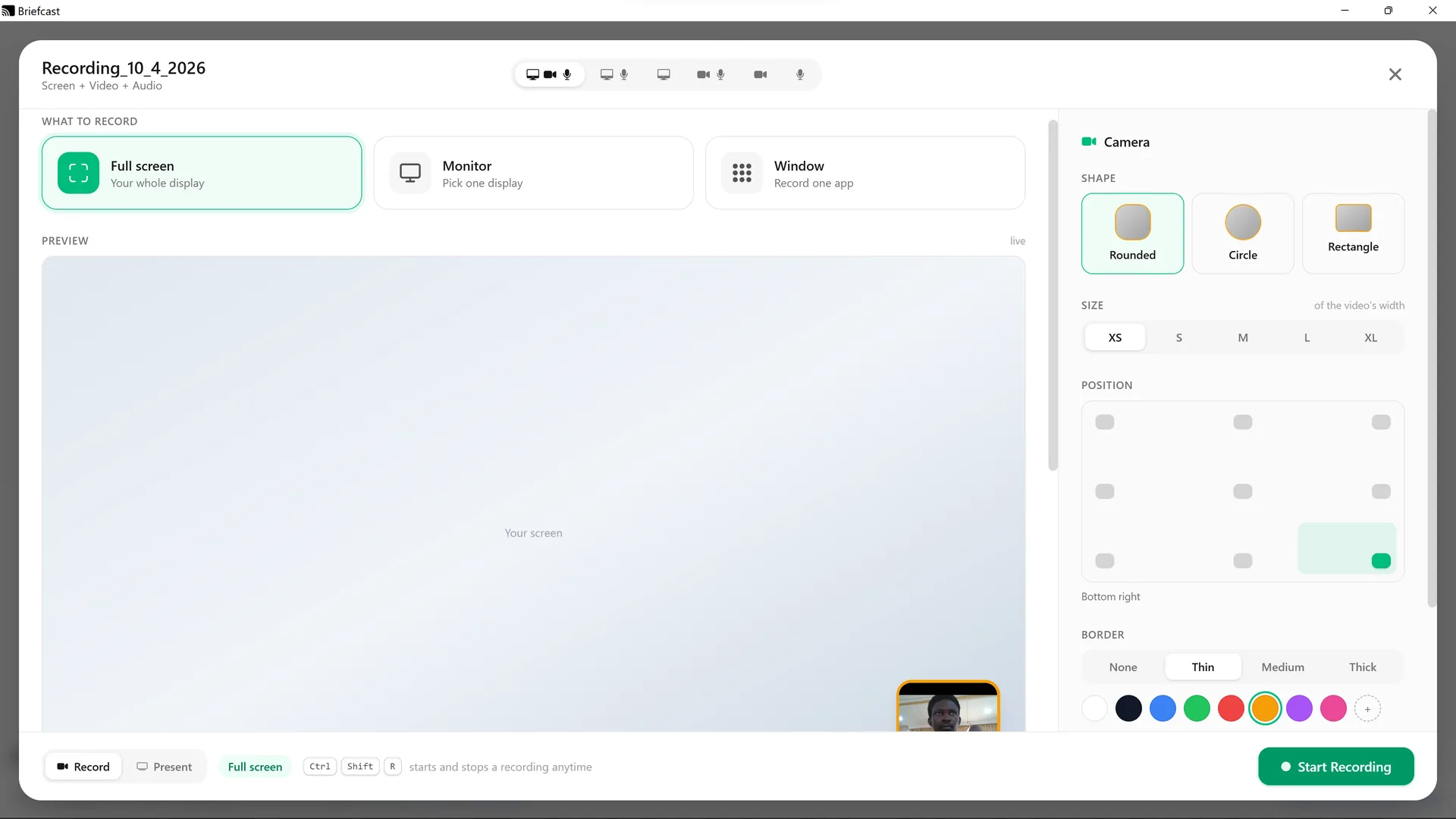
Record your whole screen, one monitor or a single window, with webcam, microphone and the sound from your computer. Scan a QR code to use your phone as a second camera, with nothing to install on it. If the capture drops mid-take, Briefcast picks it back up within seconds while the audio carries on.

02

Edit video like editing text

See everything said in a video as text and delete words to cut them. One click removes “um”s, stutters and long pauses, and shows how much time each saves first. Transcription runs offline, timed to the actual speech, so every cut lands cleanly.

03

A real editor when you need one

Cut, trim and rearrange clips with live transitions, speed ramps, motion keyframes and colour grading with .cube LUTs. Zoom in on mouse clicks, blur anything private, and export for 16:9, 9:16, 1:1 or 4:5 with the crop following the action. Or turn a folder of photos into a video. Your original recording is never changed.

04

Captions without a subscription

Turn speech into captions in 21 languages and burn them into the video in 15 styles, from a clean subtitle to word-by-word highlights. Or dictate straight into a document with voice commands like “new paragraph”. Your audio never leaves your computer.

05

Clean sound from any mic

Remove background noise or isolate your voice with AI, cut mains hum and rumble, and split a mixed track into separate voice and music. Hit -14 LUFS for streaming or -16 for podcasts in one step.

06

Write the paper, not just the video

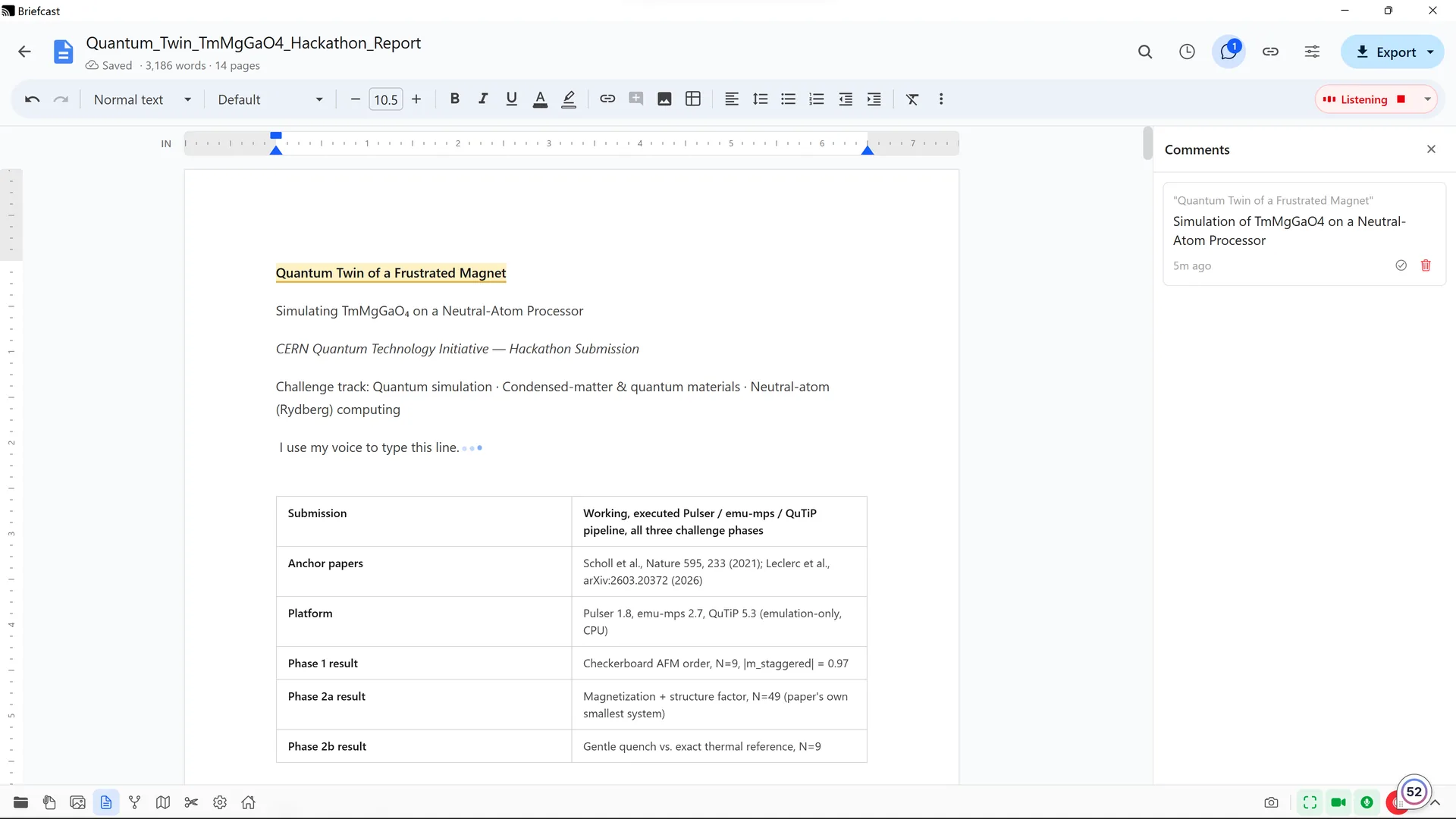
A word processor that handles a journal paper: LaTeX equations, two-column layouts, numbered figures, and citations from a DOI or arXiv ID in Nature, APS, IEEE or APA style. 13 templates, headers, footers and watermarks. Opens and saves Word files, exports PDF, and emails straight from the app.

07

Figures that hold real data

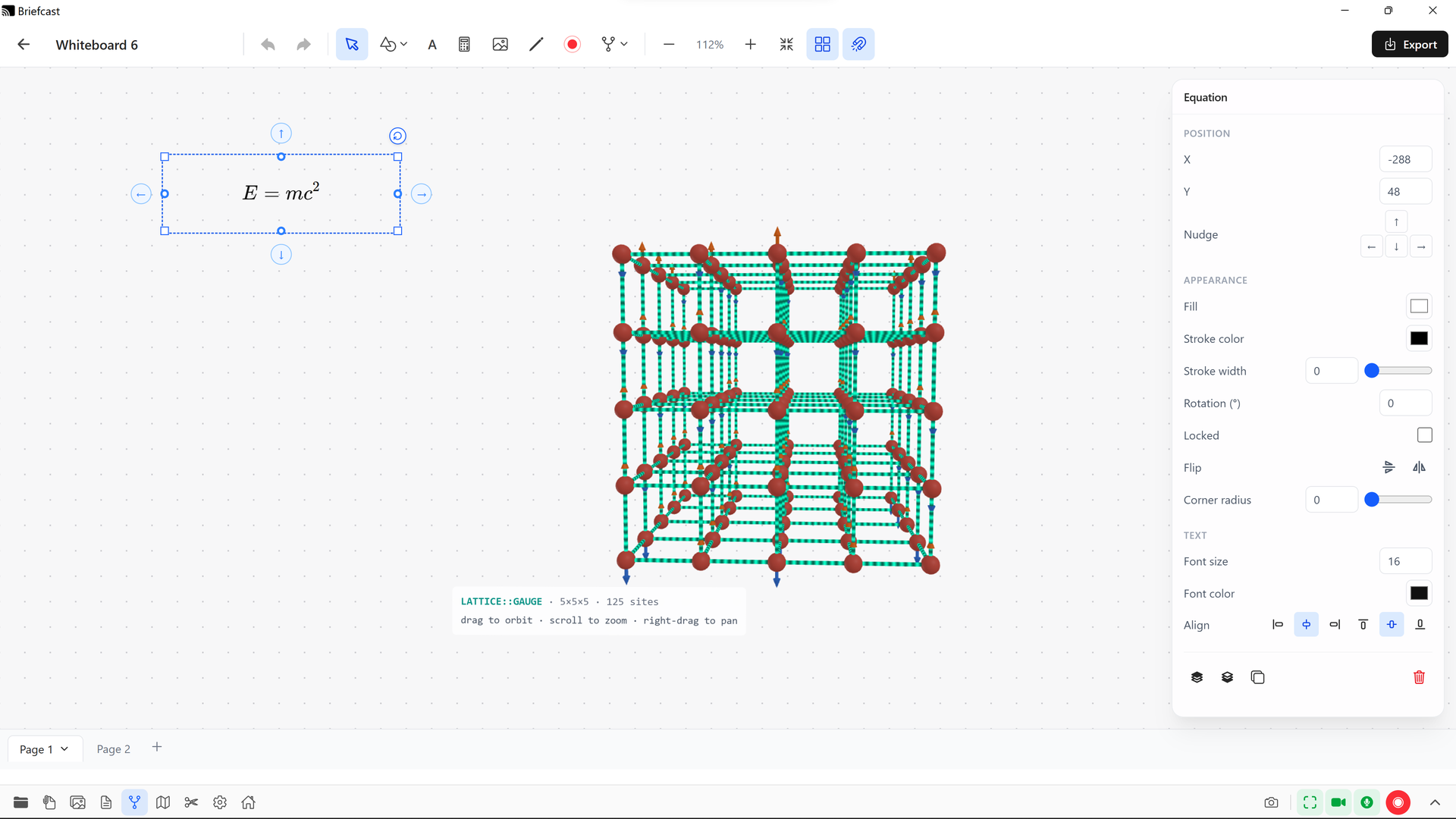
Build figures on an infinite canvas with science, circuit and flowchart shapes, equations, a function grapher and charts that stay smooth with tens of thousands of data points. Map out learning roadmaps with linked resources and progress you can tick off.

08

Mark up any PDF or screenshot

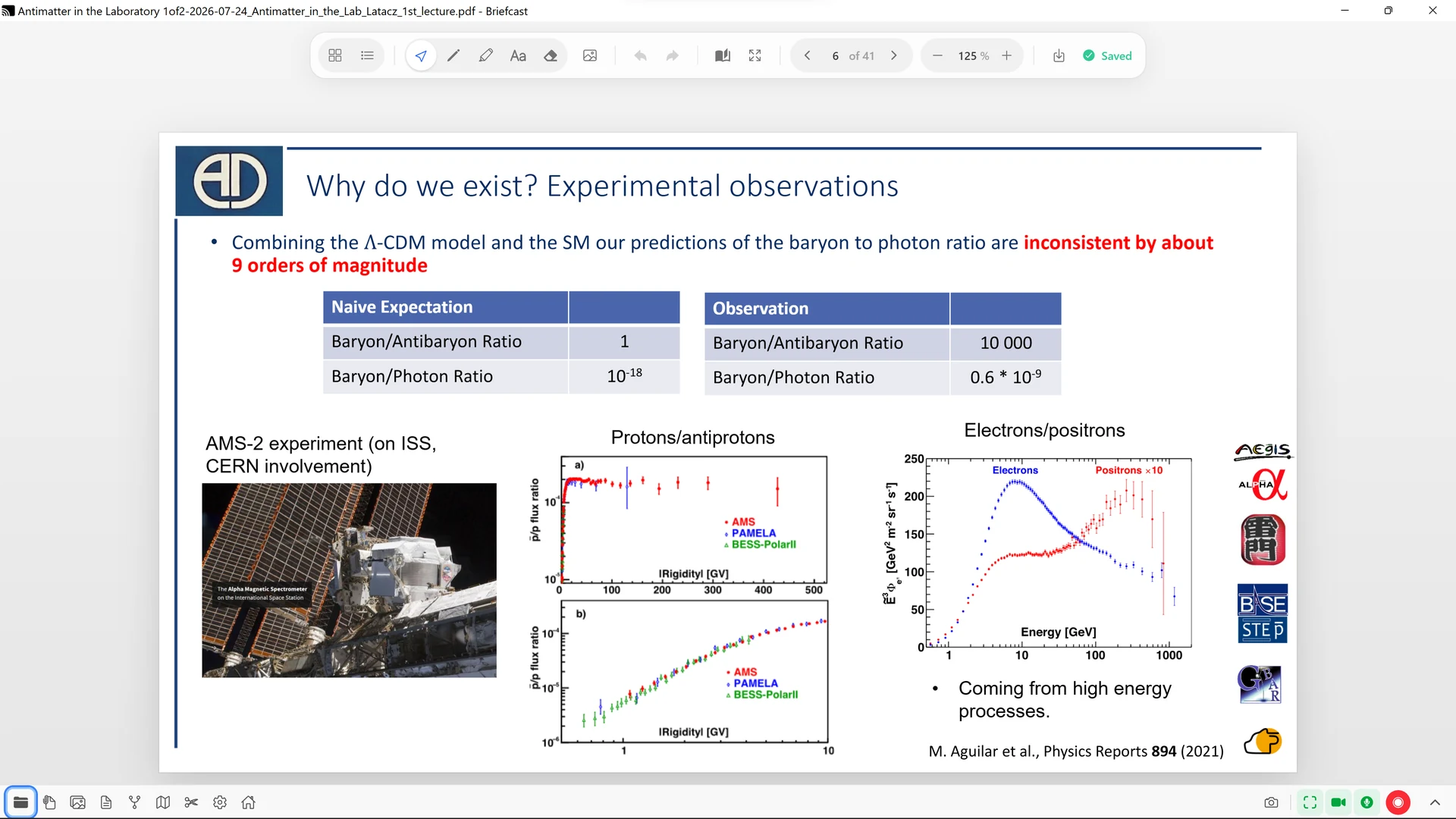
Mark up PDFs with pen, highlighter and notes, or import one as an editable document. Annotate screenshots with arrows, numbered steps and blur or redaction, open iPhone HEIC photos, and arrange pictures into collage boards.

09

Draw over any app

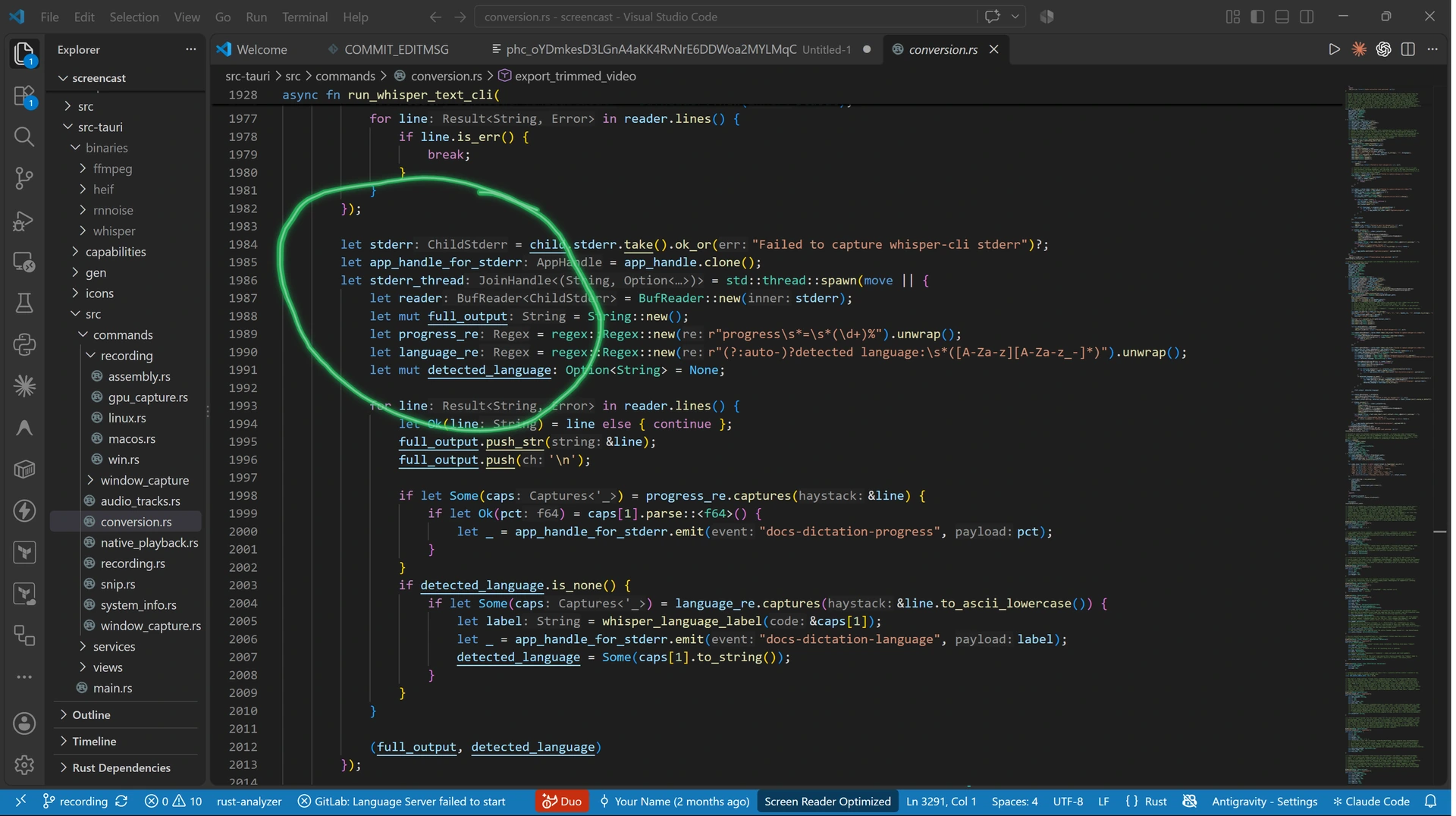
Press Ctrl+Shift+D in any app to circle, underline or point at things while you present or record, on every monitor. Choose pen, marker, neon or laser, and let the strokes fade away on their own.
Local-first

Your work stays on your computer.

Recordings, documents and annotations are ordinary files in a Briefcast folder on your disk. Briefcast works fully offline, and nothing is uploaded unless you choose to share it.

Optional backup and sync with your Briefs account is coming, so moving to a new computer won't mean losing anything.

Privacy

What Briefcast sends us.

To learn which features matter and to fix crashes, Briefcast sends anonymous usage statistics and crash reports. You can turn this off at any time in Settings → Privacy, and it stops immediately.

  • Sent: which features are used (for example "recording finished", with its length and type), crash details with your user folder removed from file paths, the app version, your operating system, and a random ID for your installation that isn't linked to you.
  • Never sent: file names, file contents, recordings, documents, or anything you type.

Updates are checked against our GitHub releases and every update is signed, so Briefcast only installs builds we published. See our privacy policy.

Getting started

Installed in a minute.

  1. 1
    Download the installer for Windows.
  2. 2
    Run it. No admin rights needed; it installs just for you.
  3. 3
    Record. Briefcast updates itself when new versions come out — you'll get a prompt, never a forced restart.
What do I need?
Windows 10 (version 1803 or later) or Windows 11, 64-bit. A recent multi-core CPU makes caption generation and audio cleanup noticeably faster.
Mac or Linux?
Not yet. Windows comes first; macOS and Linux will follow.
Why does captioning download something the first time?
The speech-recognition model (about 150 MB) is fetched the first time you use captions or dictation, so everyone else gets a smaller installer. After that it works offline.
Is it free?
Yes.

Your next explainer is one download away.

Download for Windows

Version 0.1.2 · Free