A board arranges several images into one composed picture, such as a before-and-after, a photo collage, a social media post or a figure panel, then exports it as a single image.
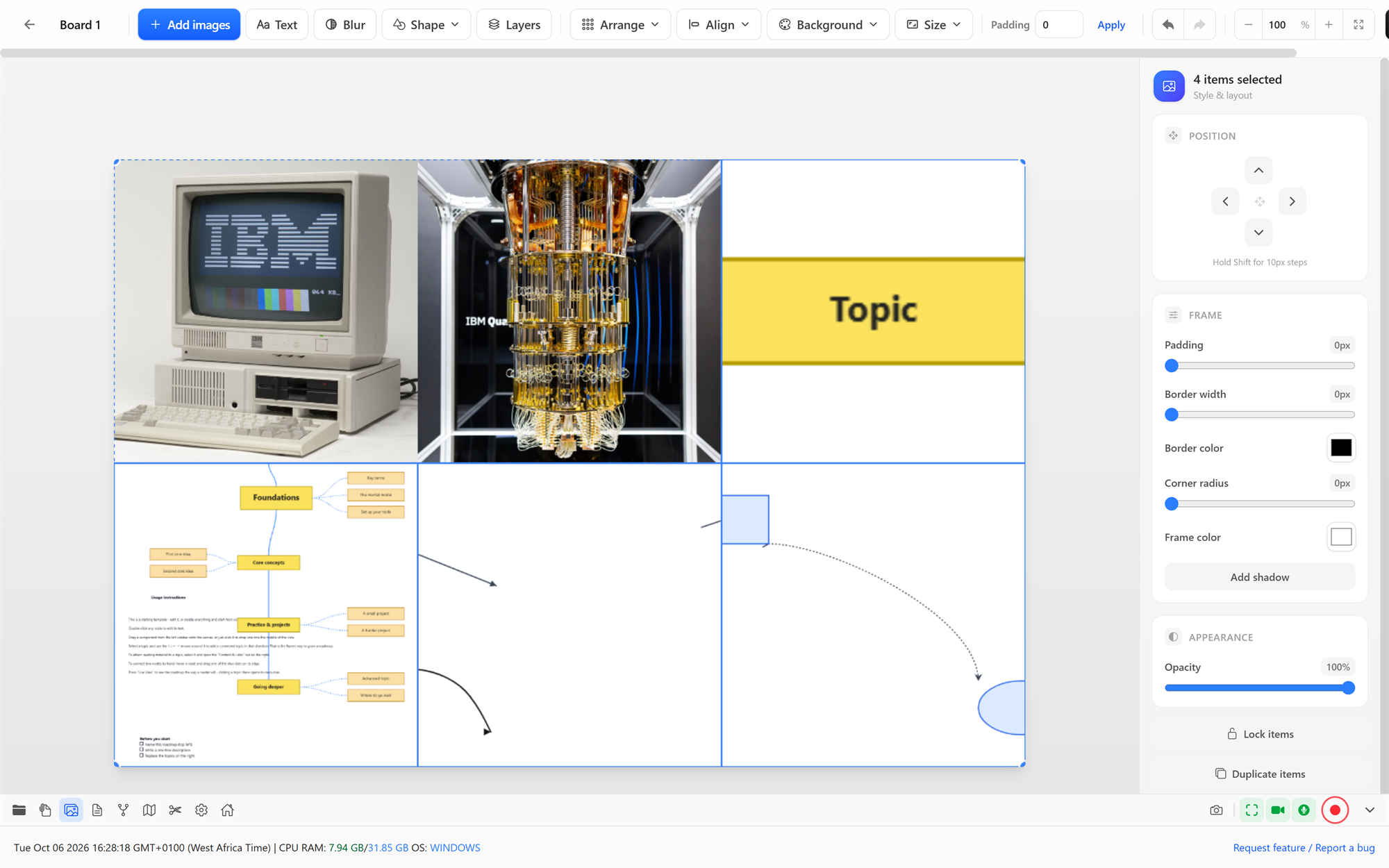
Your boards
Click the pictures icon in the bottom bar. Start a new board from a template (each sets a background and spacing) or from scratch, or open one you made before. Boards are saved projects: reopen one any time and keep editing.
Adding images
- Add images in the toolbar picks photos from your computer. HEIC photos from an iPhone work too.
- Drag photos from the library's Image tab onto the board, or select several there and click Add to board.
Images are copied into the board, so moving or deleting the originals later doesn't break it.
Arranging
- Drag images to place them and drag their corners to resize. Use the nudge arrows in the panel for precise moves (Shift for 10 px).
- Arrange images lays out everything at once: Row, Grid (even squares), Masonry (Pinterest-style columns), Circle, Circle (center focus), Spiral, Heart, Fan (overlapping, like scattered prints) or Cascade. Re-apply reruns the last arrangement after you add more images.
- Align or distribute selected items: left, centre, right, top, middle, bottom, or evenly spaced horizontally or vertically.
- Layers shows every item in stacking order, front to back; reorder from there.
Adding text, shapes and blur
- Add text: captions and titles, with a choice of fonts (including a bundled set of modern ones), bold, italic, colour and a shadow.
- Add a shape: rectangle, ellipse, triangle, pentagon, hexagon, octagon, star, starburst, line, arrow or block arrow.
- Add a blur region: drag it over anything you want to obscure.
Styling
Select an image to style it individually: border, padding, corner rounding, background, shadow and crop. Type an exact value in any field by clicking it.
For the whole board:
- Background: a colour, a gradient or an image.
- Board padding: space around the edge.
- Canvas size: presets for an Instagram post, portrait or story/reel, a Facebook post or cover, TikTok video, Pinterest pin, X (Twitter) post, LinkedIn post, YouTube thumbnail, or A4 print. Or a custom size.
Undo, Redo, Zoom and Fit to window are in the toolbar.
Sharing
Share offers:
- Copy to clipboard: paste straight into a chat, document or post.
- Save to library: saves a PNG in your library's Board folder.
- Save As…: choose exactly where to save it.