Open Settings with the gear icon in the bottom bar. Make your changes, then click Save; Cancel discards them. Reset to defaults, at the bottom-left, restores every setting.
Appearance
- Theme: Light, Dark, or System (follows Windows).
- Home screen background: Graph-like (a subtle grid and glow) or Plain.
- Show status bar: the last row of the bottom bar, with the date and time, memory use, OS and the Request feature / Report a bug link. Turn it off for more room.
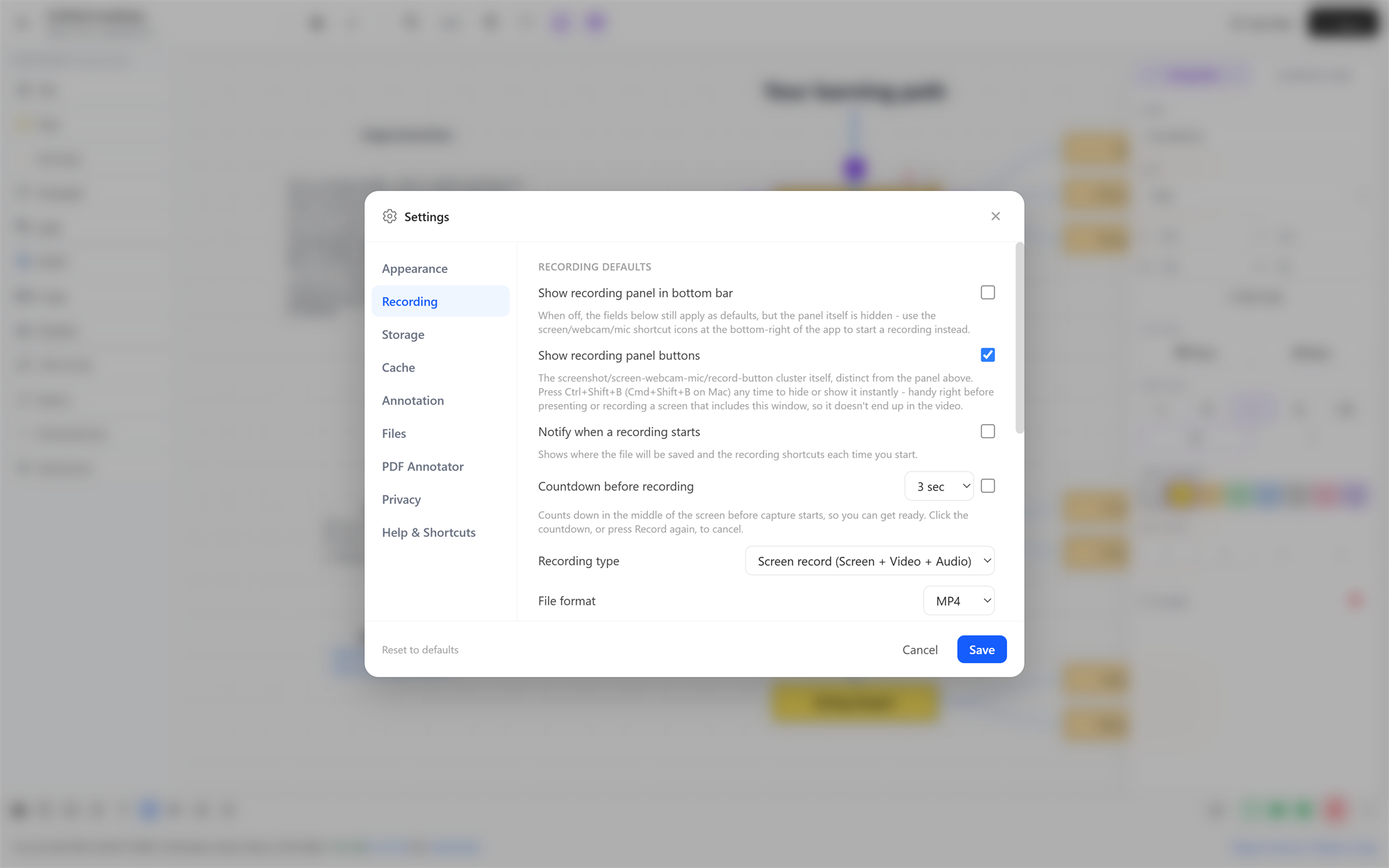
Recording
- Show recording panel in bottom bar: shows the full panel of recording options above the bottom bar. When it's off (the default), the defaults below still apply; start recordings with the screen/webcam/mic icons and the record button instead.
- Show recording panel buttons: shows the screenshot, source and record buttons at the bottom-right. Hide or show them any time with Ctrl+Shift+B, for example before recording a screen that shows Briefcast.
- Notify when a recording starts: shows where the file will be saved and the recording shortcuts each time you start. Off by default.
- Countdown before recording: off by default. Turn it on and choose 3, 5 or 10 seconds. See Countdown.
- Recording type: what a new recording captures by default (see What you can record).
- File format: the default format for recordings.
- File name prefix: recordings are named
<prefix>_<date>; the default prefix isRecording. - Audio device: the default microphone.
- Enhance audio automatically: on by default. After each recording, removes background noise, evens out your voice, lowers system audio while you talk, and sets a consistent loudness. Turn off to keep the audio exactly as recorded.
- Include system audio: record what your computer plays by default.
- Resolution and Frame rate: see Options. Auto suits almost everyone.
- Video device(s): the default camera(s). Refresh the list after plugging in a new camera.
Storage
Shows where your Briefcast folder is (by default Videos\Briefcast).
- Change Location…: choose another folder, for example on a bigger drive or in a synced folder. Briefcast moves every file and folder there for you; nothing is duplicated or left behind. If the move can't finish (for example, the drive fills up), everything is put back where it was.
- Reset to default location: moves everything back to
Videos\Briefcast.
Cache
Briefcast keeps thumbnails and previews it generates, so they don't have to be rebuilt each time you browse:
- image thumbnails;
- video poster frames;
- video scrub-bar previews;
- HEIC/HEIF photo previews;
- playable copies of videos the built-in player can't decode directly;
- image clip previews and video project canvases, used by the video editor.
Each category shows its size and can be cleared on its own, or Clear all cache clears everything. Clearing is always safe: it never touches your files, and previews are rebuilt the next time they're needed. Reload app afterwards makes open galleries pick up fresh previews right away.
Annotation
Settings for on-screen annotation:
- Enable annotation tool: allows Ctrl+Shift+D to start drawing.
- Show toolbar while drawing: turn off to draw with nothing else on screen.
- Ink: colour, style (Pen, Marker, Neon, Laser), size, how fast strokes fade out (Quick, Normal, Slow, Until I exit), and drop shadow. A live preview shows the result.
Files
- Auto-delete trash after: how many days files stay in Trash before they're erased for good (30 by default). Set 0 to keep them until you delete them yourself.
PDF Annotator
What every PDF opens with: the starting tool (none, pen, highlighter or eraser), default zoom, pen colour, highlighter colour and default stroke width.
Privacy
Send anonymous usage statistics and crash reports. See Privacy for exactly what that means. Turning it off takes effect immediately.
Help & Shortcuts
Every global keyboard shortcut, plus a short summary of each feature. See also Keyboard shortcuts.