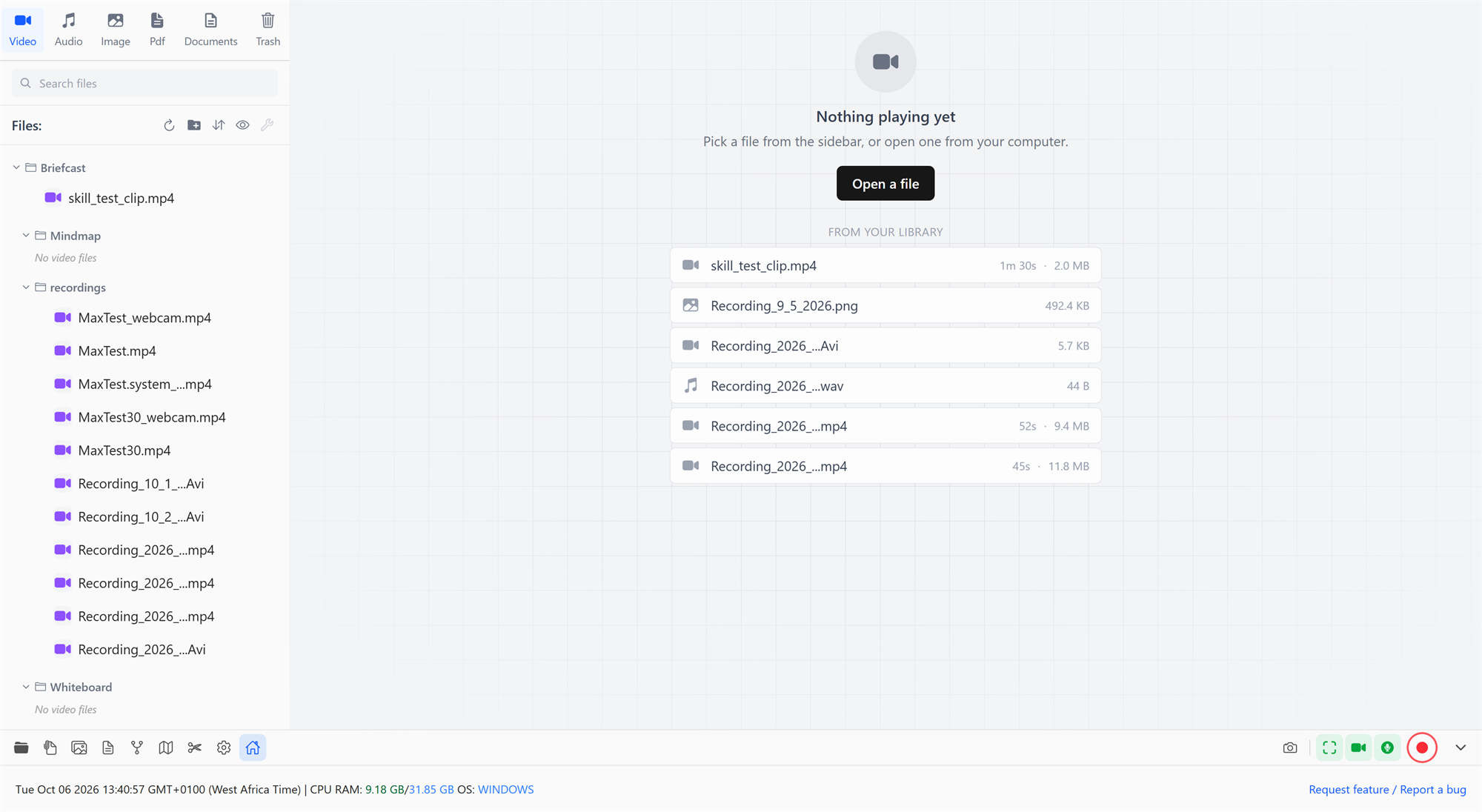
Everything you record or create is kept in your Briefcast folder (by default Videos\Briefcast), and the sidebar shows all of it. Click the folder icon at the bottom-left to show or hide the sidebar.
Browsing
The sidebar groups files by type into five tabs:
| Tab | Shows |
|---|---|
| Video | MP4, MOV, AVI, MKV, WebM, WMV, and video projects made from images (.briefvideo, see Making a video from images) |
| Audio | MP3, WAV, AAC, FLAC, OGG, M4A |
| Image | JPG, PNG, GIF, BMP, TIFF, HEIC/HEIF (iPhone photos) |
| PDF documents | |
| Documents | Word (.docx), Markdown (.md) and text (.txt) files |
Click a file to open it. Use the search box to filter by name.
Opening a folder shows its contents as a grid of thumbnails, sorted by date modified, name or size. In the image grid you can select several photos: Ctrl+click adds or removes one, Shift+click selects a range, and Esc clears the selection.
While viewing a file, the ← Previous and Next → buttons (or the arrow keys, for audio) step through the other files in the same list.
The list updates on its own: files you add to or remove from the Briefcast folder in File Explorer (or that another app saves there) appear and disappear without a refresh. Refresh files forces a reload if you ever need one.
Home screen
The home screen (the house icon) lists your work under From your library: your recordings and files, and your documents, whiteboards and mind maps too, most recent first, by when you last opened or changed them. Pinned files stay at the top; choose Pin to home in a file's menu to keep one there, and Unpin from home to remove it. Click anything in the list to open it where it belongs: a document in Docs, a whiteboard on its canvas.
Word, Markdown and text files open in Docs, whether from the library, the home screen's Open a file, or the paperclip. See Opening Word, Markdown and text files.
Organizing
Folders
- New folder creates a folder in the current tab; New subfolder creates one inside the selected folder.
- Delete empty folder removes a folder that has nothing in it. Folders with files can't be deleted, so nothing is lost by accident; move or delete the files first.
- Hide empty folders keeps the list short.
Importing files
Drag files from File Explorer onto the sidebar, or onto a folder in it, to copy them into your library. The original stays where it was. To open a file without copying it into the library, use the paperclip icon (Open file from anywhere) in the bottom bar.
Moving files
Drag a file onto a folder to move it, or use Move to in its menu.
Working with several files
Tick the checkboxes next to files to select several. A bar appears with:
- Move to: pick a destination folder for all of them.
- Convert: convert them all in one go (see Converting formats).
- Add to board: on the Image tab, while a board is open, adds the selected photos to it.
Esc clears the selection.
Quick actions for the open file
With a file open, the panel under the bottom bar offers Rename, its size and dimensions (Info), Convert, Show in folder and Delete. For images and PDFs it also points you to the editing tools.
The file menu
Each file has a menu (the three dots) with:
- Pin to home / Unpin from home.
- Link notes: creates a doc called "Notes for …" linked to this file, or opens the one you already linked.
- Rename: the extension is kept for you.
- Convert: change the format (see below).
- Add to board: for photos, while a board is open.
- Move to: pick a folder.
- Info: everything known about the file (see below).
- Delete: moves the file to Trash.
Trash
Deleting a file moves it to Trash instead of erasing it. Open the Trash tab at the top of the sidebar to:
- Restore a file to where it was.
- Delete forever, which removes it permanently.
Trashed files are erased automatically after 30 days. Change this in Settings → Files → Auto-delete trash after, or set it to 0 to keep them until you delete them yourself.
File info
Info opens a panel with everything known about a file. Sections only appear when they have something to show:
- General: name, type, size on disk, and the folder it's stored in.
- Dates: when it was created and last changed.
- Video and Audio: length, resolution, frame rate, codecs, bitrate and channels.
- Camera: for photos, the camera and the settings it was taken with.
- Location captured: where a photo was taken, if it carries GPS data, with a map link.
- Document: for PDFs, the title, author, the app that made it and the page count. It also flags attached files or JavaScript inside the PDF.
- Content: for text files, line, word and character counts.
- Embedded & hidden data: anything a file carries beyond what you see. That includes metadata blocks, extra data hidden after the end of an image (a classic way to smuggle a file inside a picture), a file whose contents don't match its extension (a ".jpg" that's really something else), and statistical signs of a message hidden in an image's pixels. The pixel check is a hint, never proof.
Copy all details puts it all on the clipboard; Show in folder opens the file's location in File Explorer.
Converting formats
Convert in a file's menu changes it to another format:
| Type | Formats |
|---|---|
| Video | MP4, MOV, MKV, AVI, WebM |
| Audio | MP3, WAV, AAC, FLAC, OGG, M4A |
| Image | PNG, JPEG, WebP, BMP |
Choose whether to keep the original or replace it. Video and audio conversions show their progress and can be cancelled.
To convert many files at once, select them with their checkboxes and click Convert in the selection bar.
Briefcast plays most formats directly. A few, such as some AVI files, are converted to a temporary playable copy the first time you open them; your file isn't changed. Those copies live in the preview cache, which you can clear in Settings → Cache.