Mindmaps in Briefcast are built for learning roadmaps, in the style of roadmap.sh: a path of topics a reader works through, where each topic carries a description, a curated list of resources, and the reader's own progress. They're equally good for course outlines, research plans and project maps.
Your mindmaps
Click the map icon in the bottom bar. New mindmap starts from an editable template that shows how the parts fit together; Start blank gives you an empty canvas. A card's menu duplicates or deletes a mindmap. Everything saves automatically.
The editor
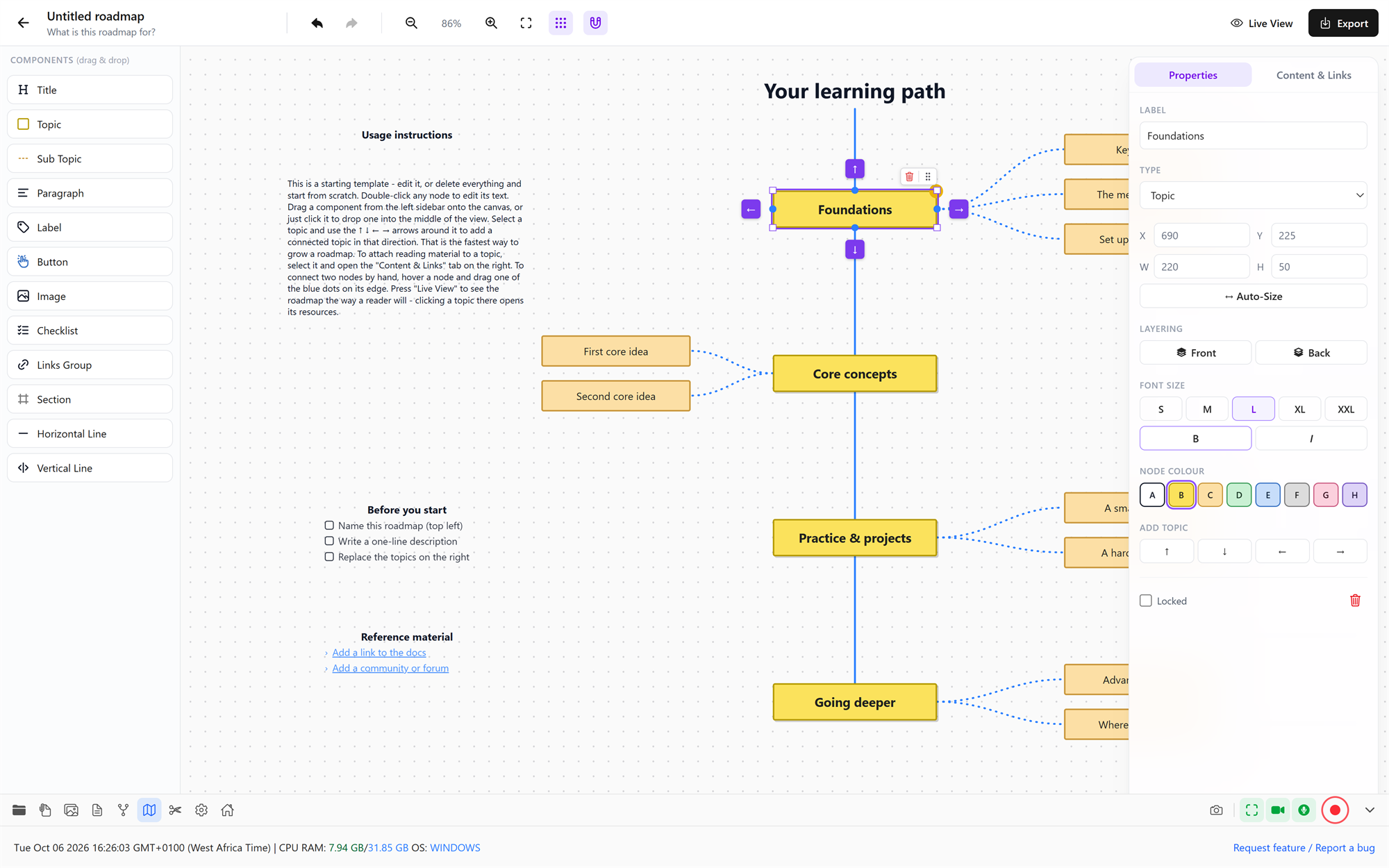
The editor has three areas:
- Palette (left): the building blocks. Drag one onto the canvas, or click it to drop it in the middle of the view.
- Canvas (middle): your roadmap. Pan and zoom like the whiteboard.
- Inspector (right): settings for whatever is selected.
Building blocks
| Block | Use it for |
|---|---|
| Title | The roadmap's heading |
| Topic / Sub Topic | The steps a reader works through, the heart of a roadmap |
| Paragraph / Label | Explanatory text and small captions |
| Button | A call-to-action box |
| Image | A picture, optionally linked to a web page |
| Checklist | A list of items to tick off |
| Links Group | A short list of links |
| Section | A box grouping related topics |
| Horizontal / Vertical Line | Dividers |
To connect two blocks, hover over one, then drag one of the dots on its sides onto the other. Add topic in the inspector (or the arrows around a selected topic) creates a new topic that's already connected. Connectors can be solid or dashed.
The inspector: Properties
- Label and Type (change one kind of block into another).
- Position and size (X, Y, W, H), with Auto-Size to fit the box to its text.
- Layering: Front or Back.
- Font size in steps, plus bold and italic.
- Colour: eight palette colours, so a roadmap stays visually consistent.
- Image: choose or replace the picture, and add a link that opens when a reader clicks it.
- Checklist items and Links: add, edit, reorder and remove rows. Choose the checkmark style and colour.
- Add topic: up, down, left or right, creating a connected topic in that direction.
- Locked and Delete.
The inspector: Content & Links
For Title, Topic and Sub Topic blocks, this tab holds what a reader actually opens:
- Progress: Pending, In progress, Done or Skipped.
- Description: what the topic covers and why it matters.
- Resources: links to articles, videos, courses, docs, books, tools, feeds and open-source projects. Mark the ones that are Official.
Live View
Click the eye icon to see the roadmap the way a reader does. Everything is read-only, so nothing gets nudged out of place by accident. Clicking a topic opens a drawer with its description and resources, and readers can mark their own progress on each topic. Click the pencil to go back to editing.
Exporting
Export saves the mindmap as PNG or PDF: Save to library puts it in your Briefcast folder, and Save as… lets you choose where.
Undo, Redo, Zoom and Fit to content are in the header.